As an Excel user, you often deal with dates and need to extract specific information from them. One common requirement is to determine the quarter of a specific date. In this article, we will show you how to get the quarter from a date in Excel, making you an Excel champ in no time.
Understanding Quarters in Excel
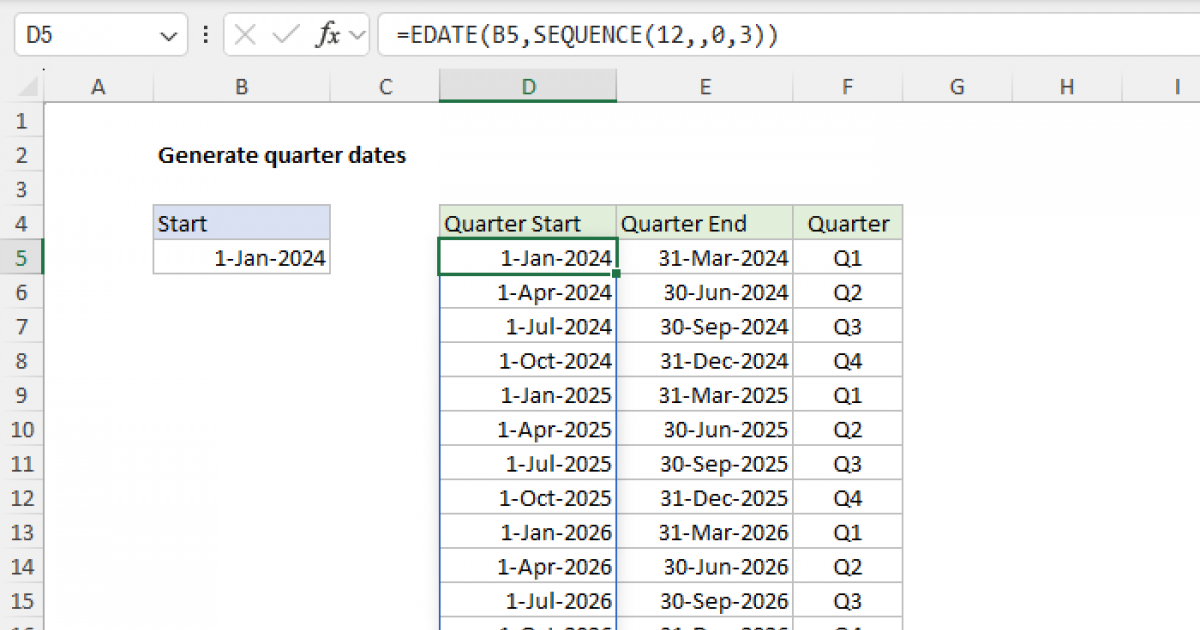
In Excel, a quarter refers to a period of three months within a year. The four quarters are:
- Q1: January to March
- Q2: April to June
- Q3: July to September
- Q4: October to December
To extract the quarter from a date, you can use various methods, including formulas and functions.
Method 1: Using the MONTH Function
One simple way to determine the quarter is by using the MONTH function, which returns the month of a date as a number (1-12). You can then use the IF function or a simple arithmetic operation to determine the quarter.
For example, if you have a date in cell A1, you can use the following formula:
`=IF(MONTH(A1)<=3,"Q1",IF(MONTH(A1)<=6,"Q2",IF(MONTH(A1)<=9,"Q3","Q4")))`
This formula checks the month of the date and returns the corresponding quarter.
Method 2: Using the ROUNDUP and MONTH Functions
Another method is to use the ROUNDUP and MONTH functions together. The ROUNDUP function rounds a number up to the nearest integer or to the nearest multiple of a specified number.
The formula to get the quarter using this method is:
`=ROUNDUP(MONTH(A1)/3,0)`
This formula divides the month by 3 and rounds up to the nearest integer, giving you the quarter number (1-4). You can then use the CHOOSE function to convert the quarter number to the corresponding quarter (Q1-Q4):
`=CHOOSE(ROUNDUP(MONTH(A1)/3,0),"Q1","Q2","Q3","Q4")`
Method 3: Using VBA User-Defined Function
If you prefer a more customized approach, you can create a VBA user-defined function to extract the quarter from a date.
Here is an example of how you can create a VBA function:
```vb
Function GetQuarter(dateValue As Date) As String
Select Case Month(dateValue)
Case 1 To 3
GetQuarter = "Q1"
Case 4 To 6
GetQuarter = "Q2"
Case 7 To 9
GetQuarter = "Q3"
Case 10 To 12
GetQuarter = "Q4"
End Select
End Function
```
To use this function, simply call it in a cell with a date as the argument, like this:
`=GetQuarter(A1)`
Extracting the quarter from a date in Excel can be achieved through various methods, ranging from simple formulas to custom VBA functions. By mastering these techniques, you'll become more proficient in handling dates in Excel and unlock more analytical possibilities. Whether you're a beginner or an advanced Excel user, being able to easily determine the quarter of any given date will make you more efficient and effective in your work.
Remember, practice makes perfect. Try out each method to see which one works best for your specific needs and become an Excel champ in date manipulation.